Setting up a family kiosk in 10 minutes
A practical, step-by-step guide to turning a spare tablet into the family habit hub.
By Jon Horton ·
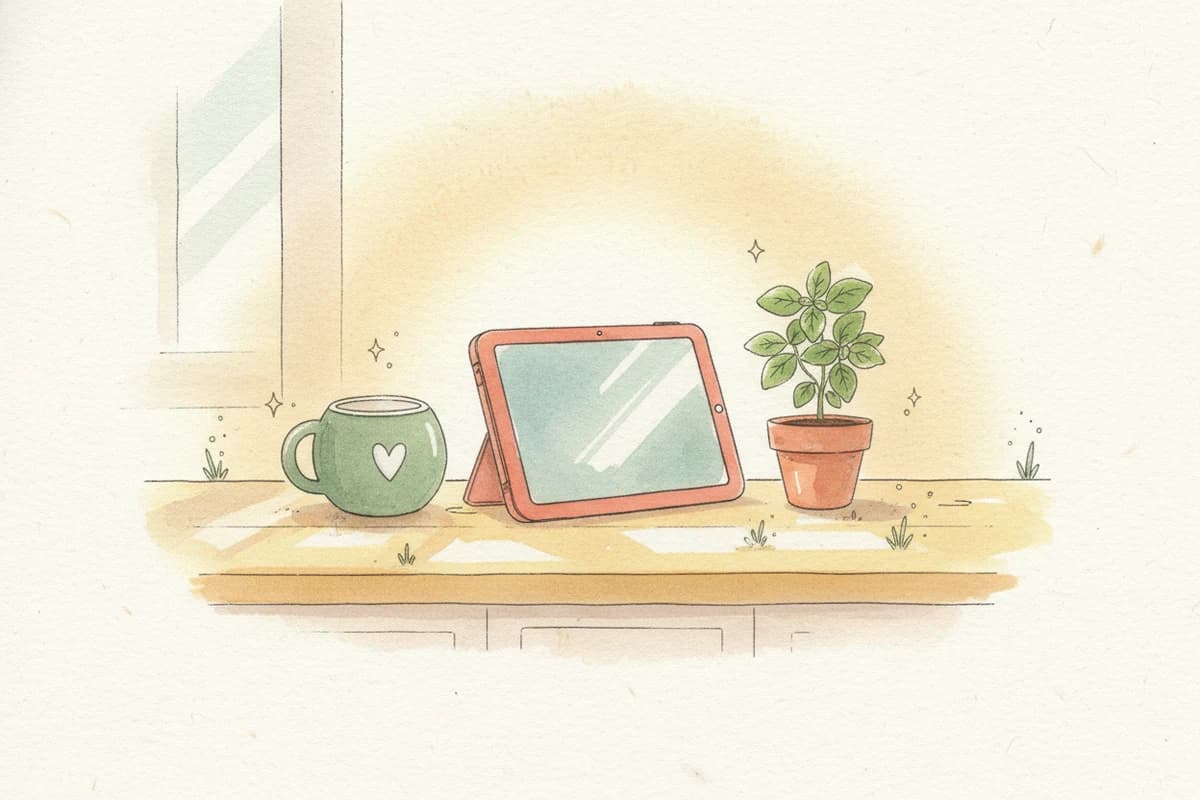
The kiosk is the part of Our Family Habits that most parents say changes the dynamic in their house. Setup is intentionally small. Here’s the whole thing, end to end.
What you’ll need
- Any tablet you already own. An iPad from any era works. An old Android tablet works. A Kindle Fire works. A Chromebook works. We’ve seen it run on a 7-inch screen and on a 13-inch one.
- Wi-Fi.
- A spot in your home where the family already passes through. Kitchen counter, fridge, dining-room shelf, the wall by the back door. Don’t hide it in a bedroom — the visibility is the point.
That’s it. No extra hardware, no purchases, no special configuration.
Step 1 — Add a kiosk to your family
Inside the app, go to Settings → Kiosk → Add a kiosk. Give it a name (“Kitchen iPad” works fine). The app generates a one-time setup code.
Step 2 — Open the kiosk on the tablet
On the tablet, open the browser and go to app.ourfamilyhabits.com/kiosk. Enter the setup code. The kiosk page loads, and the tablet is now linked to your family.
The kiosk is parent-locked from this point forward. Kids can tap actions and see growth, but they can’t edit settings, change point values, or redeem rewards without a parent.
Step 3 — Add it to the home screen
On iPad, tap the share button → Add to Home Screen. On Android, the menu has the same option (sometimes called “Install” or “Add to Home Screen”). On Kindle Fire it’s under the browser’s overflow menu.
This makes the kiosk feel like a real app — full-screen, no browser chrome, opens with one tap.
Step 4 — Lock the tablet to one app (optional but recommended)
If you want the tablet to only show the kiosk — useful if your kids are young and prone to wandering — use the platform’s guided-access feature.
- iPad: Settings → Accessibility → Guided Access. Triple-click the side button when on the kiosk page; the tablet stays there until a parent enters the passcode.
- Android: Settings → Security → Screen pinning. Same idea.
- Kindle Fire: Settings → Profiles → Child Profile. Restrict to only the browser, opened to the kiosk URL.
Step 5 — Find a spot
Two minutes of trial-and-error here pays off for months. Look for somewhere:
- The whole family passes by in normal use of the house.
- A tablet can lean or stand without being knocked over.
- It’s plugged in, or close to a charger.
Common winners: the kitchen counter near the coffee maker, the dining-room shelf, the wall by the side door, on top of the fridge. Don’t put it in a kid’s room — the shared visibility is the magic.
What it should feel like in week one
Quiet. Most of the day the kiosk just sits there showing each kid’s avatar and points. When someone earns an action, it celebrates briefly, then goes back to calm. That low-key presence is the design — not a slot machine, a kitchen calendar.
Within a week, your kids will start checking it themselves. Within two, you’ll forget you set it up.
If you want themes — garden, ocean, forest, night sky — those’re part of Power-ups. The default theme is meant to feel like aged paper, not because it’s the most fun, but because it should disappear into your home rather than dominate it.
Troubleshooting
- The tablet keeps going to sleep. Lengthen the auto-lock time in the tablet’s display settings. Most parents set it to “Never” while plugged in.
- A kid tapped something they shouldn’t have. They can’t change anything that matters from the kiosk. If you see a misfired action award, edit or remove it from the parent app.
- Two kiosks at once? Yes — you can run a kiosk in the kitchen and another in the play area, both linked to the same family. Useful in larger homes.
That’s the whole setup. Ten minutes if you’re unhurried, fewer if you already know your way around tablets. The hard part isn’t the setup — it’s the patience to let the system settle in for a week or two before deciding it’s working.